
iClicker Student
Macmillan New VenturesEducation
1.3653.00 Reviews
- Version
- 8.2.0
- Installs
- 500.00K
- Age Rating
- Everyone
Screenshots
Our Review of iClicker Student
 Analysis by Appyee
Classroom participation sounds simple until the lecturer asks for an immediate response and everyone starts looking for the right tool. iClicker Student is built for that exact moment: it turns an Android device into a way to answer classroom polls. I see it as a focused education app rather than a general study platform, and that narrow purpose is both its main strength and its biggest limitation.
After using it, my impression is that the experience depends less on flashy design and more on whether the class has already been set up to use the iClicker system. When that arrangement is in place, responding from a phone can be quicker and less awkward than carrying a separate classroom remote. When it is not, installing the app alone does not create much value. That distinction is important before you spend time setting up an account or considering any optional purchase.
How the app feels when the classroom connection matters
The app comes from Macmillan New Ventures and sits in the education category. Its store summary describes it as a way to respond to classroom polls with an Android device, while the shorter store label is simply iClicker Student. That wording gives a fairly accurate picture of the product: it is a response tool for live teaching, not a replacement for a learning-management system, a digital textbook, or a full revision app.
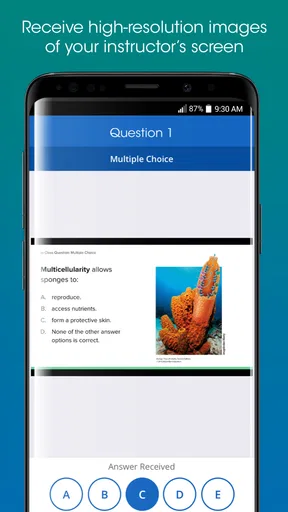
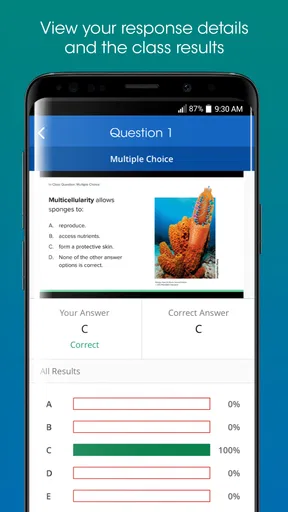
In a typical lecture, the useful moment arrives when the instructor displays a question and expects answers from the room. Instead of reaching for a dedicated clicker, I can use my phone as the response device. The benefit is practical. My phone is already with me, and I do not have to remember a second piece of hardware before class. For students who move between several courses, reducing that extra object can make participation feel less like a chore.
The experience is naturally shaped by connectivity. A live poll requires the response to travel from the device to the classroom system, so a weak or congested connection can become part of the lesson. That does not mean every delay is caused by the app. The phone, local network, classroom setup, and instructor’s software all sit between tapping an answer and seeing it counted. I would therefore avoid judging the app solely by one slow response in a crowded lecture hall.
There is also a subtle social advantage to a phone-based response system. A student can answer without waving a remote around or drawing attention to the device. That can make participation more comfortable for people who dislike speaking in front of a room. At the same time, a phone introduces familiar distractions. Notifications, low battery, or the temptation to switch apps can make the supposedly convenient option less dependable than a dedicated remote.
The current version is 8.2.0, and the app requires Android 8.0 or later. That makes checking the phone’s software worthwhile before class rather than discovering a compatibility problem at the door. The age rating is Everyone, which fits its classroom purpose. It is free to install, although in-app purchases range from $5.99 to $49.99 per item, so I would pay attention to the course’s access expectations before assuming that “free” covers every part of participation.
What happens in a normal mobile classroom scenario
Imagine a morning lecture where the instructor pauses after explaining a difficult concept and asks the room to choose between four answers. I open the app, connect to the relevant class experience, and submit the response. In that situation, the phone is at its best: it is already in my hand, the task is short, and the app’s purpose is immediately clear.
The less obvious challenge comes before the question appears. If I have not prepared the app, joined the correct class context, or checked that the phone can communicate properly, the first poll becomes a setup test rather than a learning activity. My practical advice is to open the app before the lecture begins, confirm the course arrangement, and keep the screen ready. That small habit matters more here than exploring every menu.
I would also keep a simple backup routine. If the instructor accepts verbal answers, raising a hand may be enough. If participation affects a course record, I would tell the instructor promptly when a response fails instead of repeatedly tapping and hoping it eventually arrives. The app can support classroom interaction, but it cannot repair a missing class configuration or a network problem by itself.
Connectivity is part of the workflow, not a background detail
With many mobile apps, a brief connection problem is an inconvenience that can be fixed later. With live polling, timing may be the whole point. A question can close while the device is still trying to send an answer, or the class can move on before I know whether my response registered. That makes network quality a functional concern rather than a minor technical detail.
This is where iClicker Student differs from ordinary note-taking or flashcard apps. A notes app can let me write now and organize later. A flashcard app can often be used at my own pace. A live classroom response tool has a narrower window: the value comes from answering while the instructor is discussing the question. I would choose a traditional study app for independent practice, but I would choose this one when the course specifically uses live polling.
It is useful to separate three kinds of failure. First, the app may not be ready for the right class. Second, the phone may have a connectivity issue. Third, the classroom’s receiving system may be slow or unavailable. From a student’s perspective, these can look identical because the expected confirmation does not appear. Rather than immediately reinstalling the app, I would check whether classmates are also affected and ask the instructor whether the poll is still open.
That approach saves time and avoids making the situation worse. Repeatedly closing the app, changing settings, or switching networks during a live question can create more confusion than it solves. If the problem is limited to my device, restarting the app may help. If the entire room is waiting, the instructor or classroom system is the more likely place to investigate.
Small habits that make phone-based polling less fragile
My first practical tip is to treat the app like classroom equipment. I would charge the phone, silence notifications without blocking important calls, and open the app before the lecturer starts. This sounds basic, but a phone used for polling is exposed to the same battery and distraction problems as every other phone task. A dedicated remote may be less versatile, yet it does not invite the same interruptions.
The second tip is to avoid leaving setup until the first graded or important question. A low-stakes opening poll is the best time to confirm that the class is correct and that responses are arriving. If the instructor does not use an opening question, I would ask discreetly before the lesson begins. That is a better test than discovering the issue during an exam review or attendance check.
The third is to watch the difference between “I tapped an answer” and “the class received my answer.” Those are not necessarily the same event. If the interface gives any indication that a response was accepted, I would look for it before putting the phone away. If no clear confirmation appears, I would not assume that tapping multiple times improves the odds; it could create uncertainty about which response the system records.
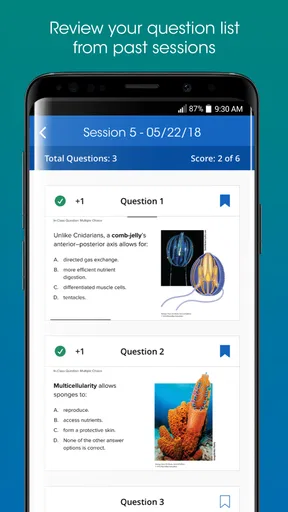
A fourth useful habit is to keep the app’s role separate from personal study notes. I would not rely on a poll history as my complete record of what I learned. After class, I would write down why an answer was correct or incorrect while the discussion is fresh. The polling interaction can reveal where I misunderstood a concept, but the app is not a substitute for reviewing the explanation that followed.
Where the free installation can become a decision point
The free price makes it easy to try the app, but students should not confuse installation cost with the total course arrangement. Optional purchases are listed between $5.99 and $49.99 per item. Whether that matters depends on how the instructor and institution organize access, so I would check the course instructions before buying anything. A student who only wants an occasional poll may reasonably question a larger commitment, while a course that uses responses every week may justify it.
This is also an area where the usual alternatives can be more predictable. A classroom-issued clicker may have a separate cost or borrowing process, but it can be dedicated to the task. A browser-based polling page may avoid installing an app, though it can introduce its own login and connection steps. A show-of-hands system costs nothing and works when the instructor only needs a rough sense of the room, but it does not offer the same private response experience.
I would recommend iClicker Student when the course already depends on the iClicker ecosystem and the instructor expects mobile participation. I would be more cautious when the teacher rarely uses polls, when the class has unreliable connectivity, or when I am looking for a tool to study alone. In those cases, a standard notes, quiz, or flashcard app is likely to be a better match because it does not depend on a live classroom exchange.
What to do when a response does not go through
Connectivity problems are most frustrating when the question is time-sensitive. My recovery process would be deliberately simple: check whether the poll is still open, look for a response indication, and ask the instructor whether the answer was recorded. If the whole class is experiencing trouble, waiting for the classroom system to recover is more sensible than changing several phone settings at once.
If only my device is affected, I would verify the selected class context, close and reopen the app, and reconnect using the available classroom network or mobile connection. I would avoid promising myself that an answer will be counted later unless the instructor confirms the policy. A live response may be tied to the active poll window, so assuming automatic recovery could lead to a missed participation record.
This is one reason I would not make the app my only route to important course communication. I would keep the instructor’s instructions, attendance rules, and any alternative response method available. The app is a channel for answering polls; it is not a universal safety net for every classroom technical problem.
Another realistic limitation is device sharing. If I lend my phone to someone, switch accounts, or use multiple course contexts without checking carefully, it becomes easier to answer from the wrong place. I would confirm the class before a poll, especially when taking several courses that use the same system. That extra glance is worthwhile because a technically successful response can still be useless if it is attached to the wrong class.
Using it without wasting mobile data or attention
Because the app is designed around live classroom responses, I would use it selectively rather than leave it open all day. Opening it shortly before a poll and closing it after class keeps the experience focused and reduces the chance that another app or notification interrupts the task. It also makes it easier to notice when the connection is behaving differently from normal.
If mobile data is limited, I would prefer the classroom’s intended network when it is reliable, while keeping a backup plan for a brief failure. I would not switch repeatedly between connections during a question, because every change adds another variable. The sensible balance is preparation before class, one stable connection during the poll, and a quick conversation with the instructor if the service fails.
Privacy and attention also deserve practical consideration. A phone-based answer feels private compared with raising a hand, but the student should still follow the course’s expectations about devices and participation. I would keep the screen on the polling task rather than browsing unrelated content. The app works best when the phone becomes a classroom instrument for a few minutes, not when the lecture competes with everything else on the device.
The app’s adoption is substantial, with over 500 thousand installs, yet the average rating is 1.3 from around 2.2 thousand ratings. I would read that combination carefully. It suggests that many people have tried the tool, but the low average points to meaningful dissatisfaction among users. Since live classroom systems involve instructors, networks, and account arrangements, the rating may reflect more than the app interface alone, but it is still a reason to test the setup early rather than rely on it blindly.
There are also 653 written reviews associated with the listing, which can help reveal recurring frustrations when deciding whether to install it. I would look for comments that match my situation: the Android version, the course’s access method, and the way the instructor runs polls. A complaint from a different classroom workflow may not predict my experience, while a repeated issue involving response timing or setup deserves attention.
Who should use it, and who should skip it
I think the best audience is a student whose instructor actively uses iClicker polling and wants the convenience of responding from an Android phone. It is especially sensible for someone who moves between classrooms and does not want to carry a separate remote. It can also suit students who prefer submitting an answer privately before hearing what the rest of the room thinks.
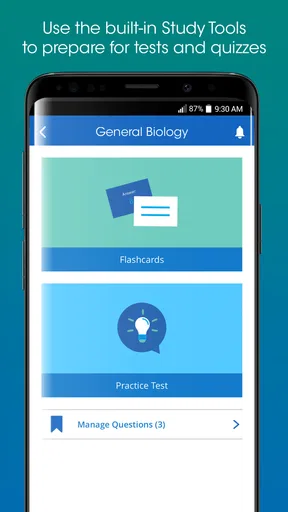
I would skip it if I want self-paced lessons, vocabulary practice, assignment management, or a complete study record. None of those needs is solved simply by having a classroom response app. I would also hesitate if my phone is old, unreliable, frequently out of battery, or subject to strict classroom rules against device use. In those circumstances, a dedicated clicker or the instructor’s alternative method may be less stressful.
Instructors and institutions should be considered too, even though the app is used by students. The student experience is only as smooth as the course setup behind it. If a teacher uses polls occasionally and offers an easy alternative, the app is a convenience. If participation is central and every response must arrive promptly, students need clear preparation instructions and a recovery plan for connection failures.
For iOS users, I would check the appropriate version of the service rather than assume that an Android review applies perfectly to another platform. This review focuses on the Android app and its stated minimum of Android 8.0. The key lesson is to match the device, course instructions, and classroom system before treating the app as essential equipment.
My connectivity verdict
iClicker Student is a narrowly useful education app that makes sense when a real class is already using live iClicker polls. I like the convenience of turning a phone I already carry into a response device, and I appreciate the quieter participation style compared with raising a hand. The strongest benefit appears during short, frequent questions where speed and ease matter more than elaborate features.
My reservations are equally practical. The experience is tied to a live classroom workflow, and connectivity can affect whether a response arrives in time. Optional purchases mean the free installation should be viewed as the starting point for checking course access, not as proof that participation will cost nothing. The low average rating also tells me to prepare carefully and avoid depending on the app without an alternative.
Overall, I would recommend trying it before the first important lecture poll, not five minutes afterward. Confirm the class setup, test a response, keep the phone charged, and know whom to contact if the connection fails. If those conditions are met, it can be a convenient bridge between a classroom question and my answer. If they are not, a dedicated clicker, a browser-based option, or a simple instructor-led response may be the wiser choice.
My final view is simple: choose it for an established, connected classroom workflow, not as a general-purpose learning app. That expectation keeps the decision realistic. It is free to begin, rated for Everyone, and developed by Macmillan New Ventures, but its real value comes from the course around it. When that course uses the system consistently, the app can remove a small piece of classroom friction. When the connection or setup is uncertain, preparation matters more than the download itself.
Verdict
Strengths of iClicker Student
- Quickly join courses with a code or institution login.
- Supports live polls, quizzes, and attendance in one app.
- Immediate response feedback helps reinforce lesson understanding.
- Works with common classroom participation workflows.
- Available for both Android and iOS devices.
Limitations of iClicker Student
- Some features depend on instructor setup and course integration.
- Requires a reliable internet connection during live activities.
- Login or access-code problems can delay classroom participation.
- Notifications may be inconsistent depending on device settings.
- The interface can feel basic compared with full learning platforms.
Similar Picks in This Category
View All
Duolingo: Language Lessons
Duolingo4.7

Google Classroom
Google LLC2.8

Unacademy: Learn & Crack Exams
Unacademy3.2

Bible App for Kids
Life.Church4.4

Cake - Learn English & Korean
Cake Corp.4.7

Brainly: AI Homework Helper
Brainly4.5
Frequently Asked Questions
What is iClicker Student, and what is it used for?
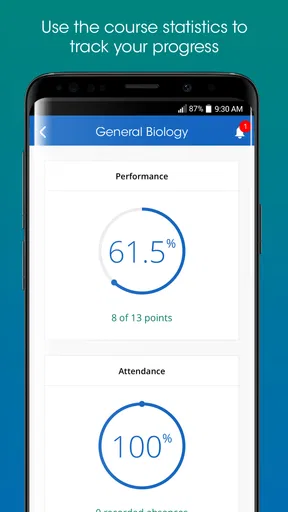
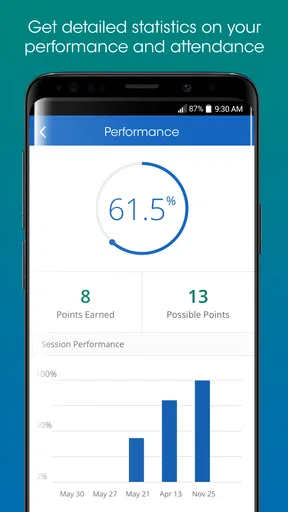
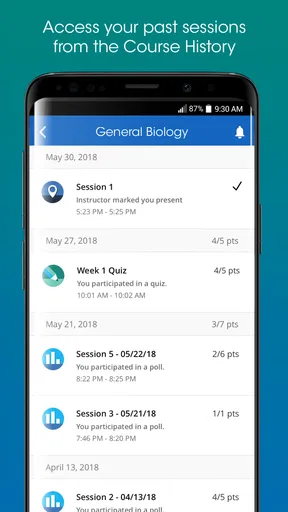
iClicker Student is a classroom participation app that lets students respond to questions during lectures, quizzes, and interactive activities. After joining an instructor’s course, you can submit answers from your Android or iOS device and, depending on the teacher’s settings, view participation results, attendance records, or grades. It is mainly designed for use with classes that officially support iClicker.
How do I join a class and connect iClicker Student to my course?
To use the app, you generally need to sign in with an iClicker account or an institution-supported login, then search for or join your instructor’s course. Some classes require a course-specific code, while others may connect through your school’s learning platform. The exact process can vary, so students should follow the instructor’s enrollment instructions before attempting to submit responses.
Does iClicker Student cost money, or is it free for students?
The app itself may be available to download without charge, but access to certain iClicker features can depend on your institution, instructor, or course subscription. Some classes include student access as part of tuition or course materials, while others may require a paid student plan. Check your course instructions and the current App Store or Google Play listing for the latest pricing details.
Can iClicker Student be used without an internet connection?
iClicker Student is primarily intended for live classroom participation, so a reliable internet connection is normally recommended when answering questions or checking course information. If your connection drops, responses may not be transmitted immediately, and whether they can be recovered depends on the app version and instructor settings. It is best to connect to stable Wi-Fi or mobile data before class begins.
What should I do if my answers are not registering in iClicker Student?
First, confirm that you joined the correct course and that the session is currently active. Check your internet connection, make sure you are signed in to the expected account, and update the app if an update is available. Restarting the application can also help. If responses still do not appear, contact your instructor or campus support team, since course configuration may be causing the issue.
